An administrator can lock card editing for a team member. The lock works in the mobile app and in the dashboard. This helps when you want all company cards to look the same and nobody to change them by mistake.
#How to lock edits for one person
- At dash.swopi.co, open Team and choose Users.
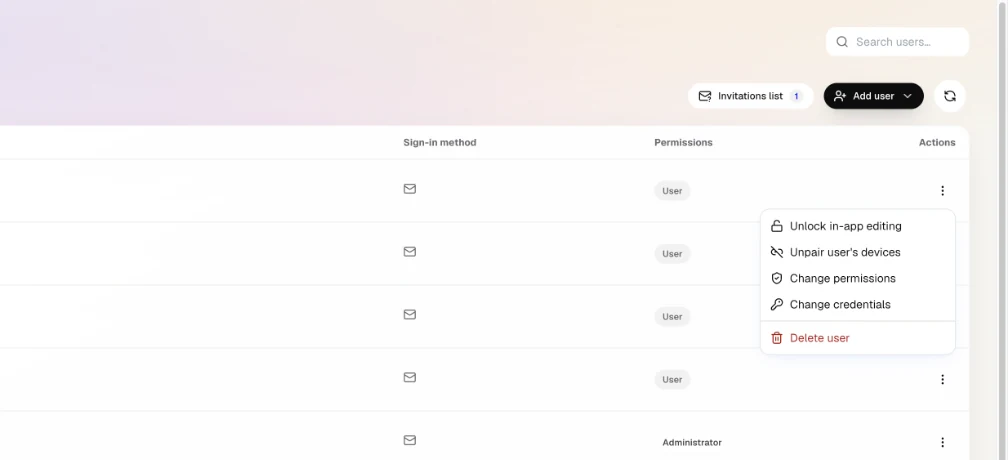
- Next to the member, click the menu with three dots.
- Choose Lock in-app editing.
A lock icon shows next to the member in the list. The lock applies to the person, so it covers all of their cards.
#How to lock several people at once
- On the Users page, tick the members, or use Select all.
- In the bar at the bottom, click Lock editing.
You can also do this in Team cards: select the cards, open Digital cards in the bar at the bottom and choose Lock in-app editing.
#What the member sees
In the dashboard, the member sees the card as read only, with the note Your team admin manages card edits.
When they try to edit their card in the app, they see the message Card Locked. A locked member also can't activate a new Swopi device in the app. They can still share their card as before.
You can make changes for them in the dashboard. Administrators and managers edit the whole team's cards in Team cards. Templates also help keep one look.
#How to unlock edits
Follow the same steps and choose Unlock in-app editing, or Unlock editing for several people. The member can then edit their card in the app again.