A virtual background shows your card's QR code in the corner. Anyone who sees you on a video call can scan it with their phone and get your contact.
#How to create your background
- At dash.swopi.co, open your card. You find it under Team in My cards. Administrators and managers find it in Team cards.
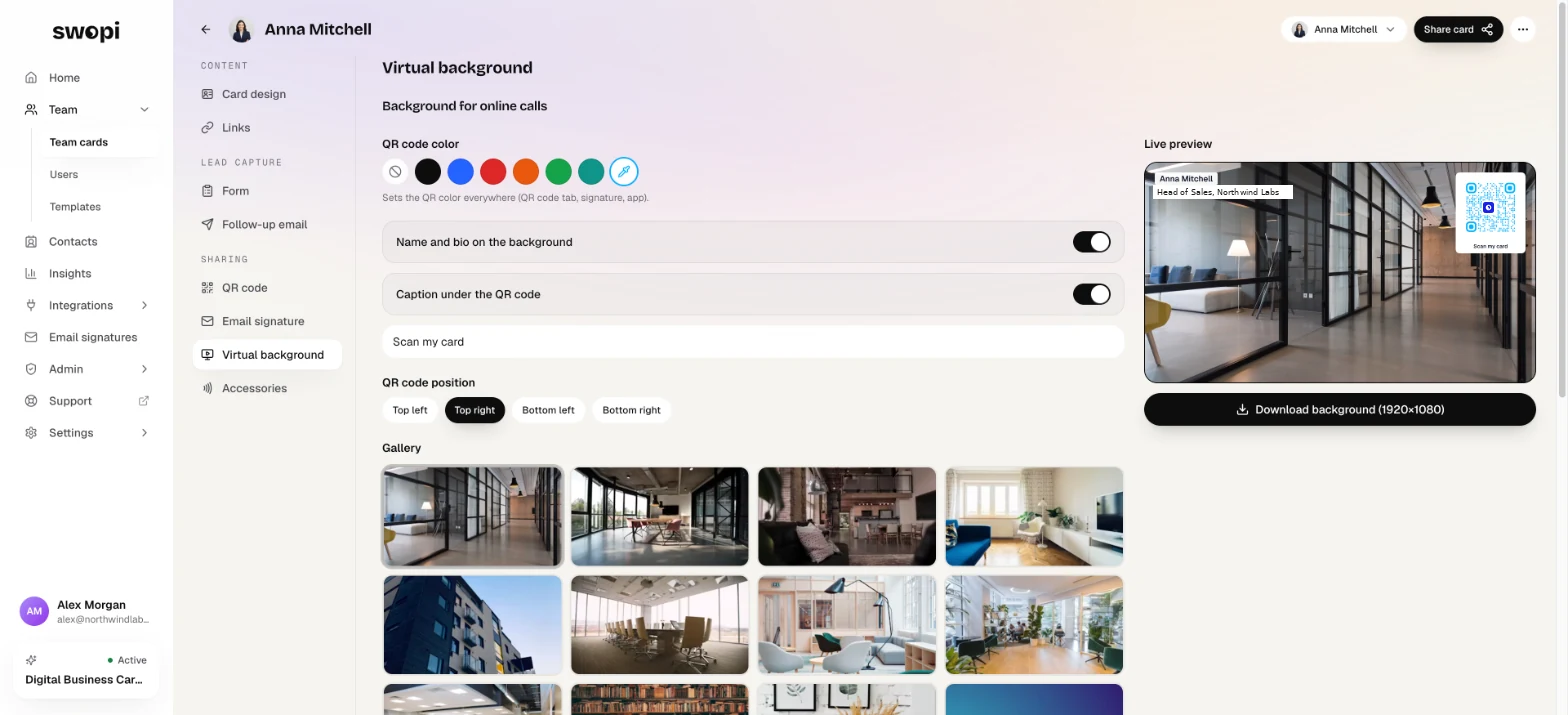
- In the card editor, go to the Virtual background tab.
- Pick an image from the Gallery, or upload your own under Custom background. You crop your own image to a 16:9 ratio.
- Set the QR code color and the QR code position.
- Turn Name and bio on the background on or off, and edit the Caption under the QR code.
- Check the Live preview and click Download background (1920×1080).
The QR code color is saved to your card and is used everywhere, also in your email signature and in the app.
#How to use the background on a call
Upload the downloaded image as a virtual background in the app you use for calls, for example Zoom, Google Meet or Microsoft Teams. For the exact steps, see the help pages of that app.
#A company background for the whole team
An administrator can set a Default video call background under Admin in Card defaults. Saving applies it to every card in the team, including existing ones. A card template can set the background too. The company background is then already selected on the Virtual background tab.
#In the mobile app
In the app settings, tap Virtual Background. The app emails you a link to the dashboard, where you create and download the background.