You add colleagues to your team with an email invitation. Once they accept it, they are part of your organization.
#How to invite colleagues
- Sign in to the dashboard at dash.swopi.co.
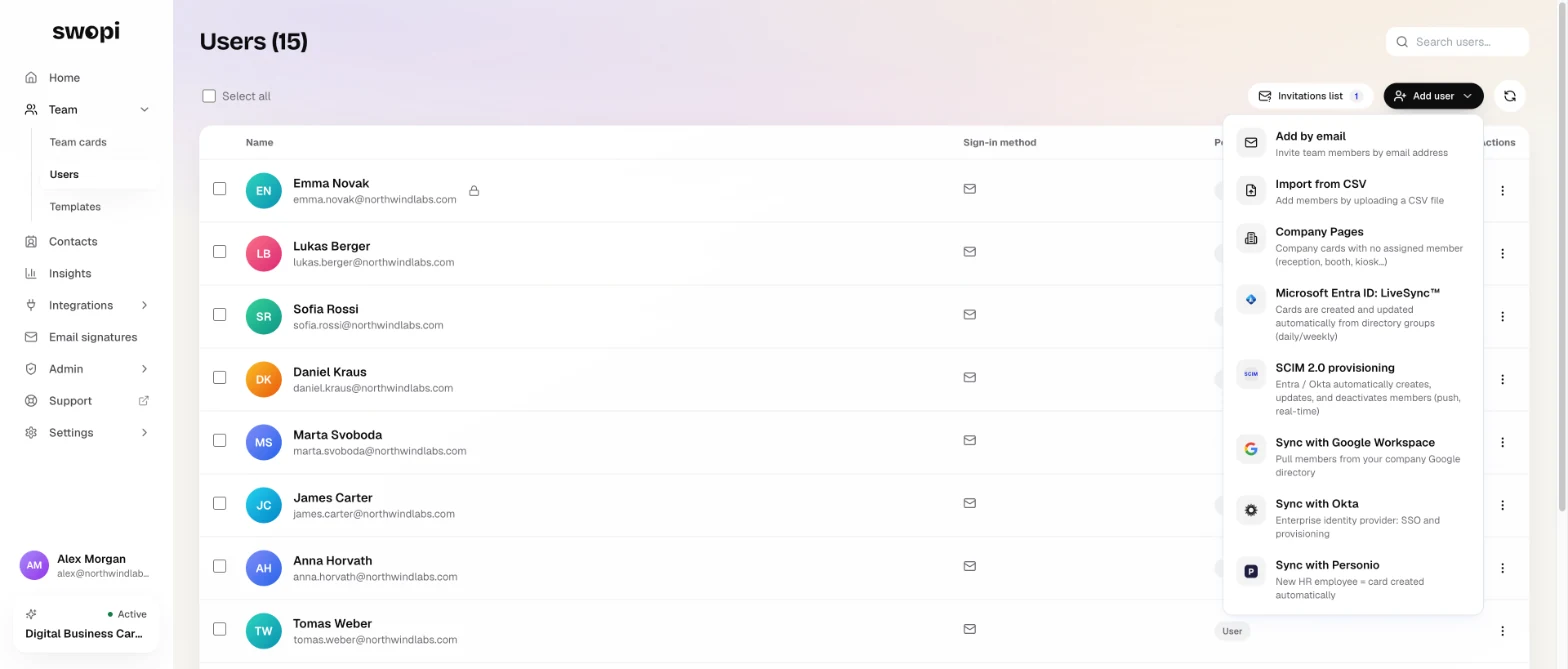
- In the left menu, open Team and choose Users.
- Click Add user and choose Add by email.
- Enter the email addresses. Separate more than one address with a comma or a new line.
- Pick the Invitee role: User, Manager or Administrator.
- Click Invite.
Only an administrator can see the Users page. To see what each role can do, read Roles and permissions.
#What your colleague gets
They get an email with an Accept invite button. They click it, create an account and join the team with the role you picked. If they already have a Swopi account, they get a link straight to the dashboard instead.
A colleague who already belongs to another organization can't accept the invitation. If that happens, write to us at support@swopi.co.
#Pending invitations
On the Users page, click Invitations list. You see who got an invitation, with which role, and who sent it. To cancel an invitation, click Revoke. You find the same list under Admin in Invitations.
#Other ways to add people
- Import from CSV creates accounts and cards in bulk and sends no emails. See Bulk import from CSV.
- Automatically add members by email domain is in Team settings.
- To connect your company directory, for example Microsoft Entra ID, see the technical docs at docs.swopi.co.