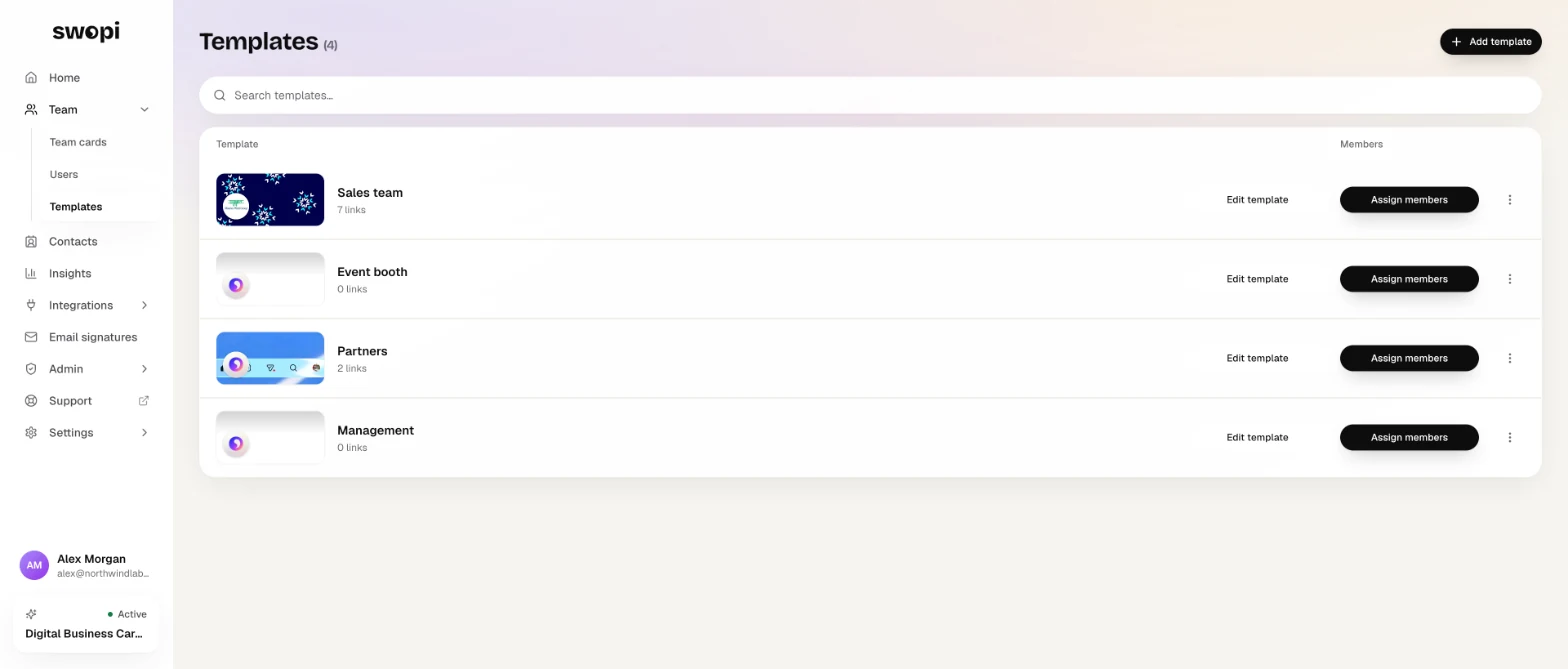
A template is a card design you set once and assign to people. Whatever you fill in on the template lands on their cards. Whatever you leave empty, each person sets on their own.
Administrators and managers manage templates. You find them in the left menu under Team, in Templates.
#How to create a template
- At dash.swopi.co, open Team and choose Templates.
- Click Add template.
- Pick a starting point: From scratch or From an existing card. The second option takes the design and links of a card you already finished.
- Name the template and click Create.
- Go through the tabs Card design, Links, QR code, Lead capture form, Follow-up email and Settings.
- Save your changes with Update.
#What a template sets
- card colors, layout and font, company name and a shared bio,
- logo, cover photo and the video call background,
- a profile picture, but only for people who have none,
- company links. For each one you choose Common (one value for everyone, like the company website) or Unique (everyone has their own, the template sets only the icon and order),
- QR code color and logo,
- the lead capture form and an automatic follow-up email.
Name and photo always stay personal.
#How to assign a template
- On the template, click Assign members.
- Pick the cards the template should drive. Use search and the Assigned and Not assigned tabs.
- Click Save.
Every later change to the template updates all cards that use it.
#Removing a template
When you remove a template, you pick one of two options. Keep the cards as they are leaves the cards unchanged. Clear template data from the cards removes the template links and returns the look to the team defaults. A removed template cannot be recovered.
The look every new card gets before you assign a template is set under Admin in Card defaults.