Swopi builds an email signature from your digital card, with your photo, details and QR code. You then copy it into Gmail, Outlook or Mail.
#How to create your signature
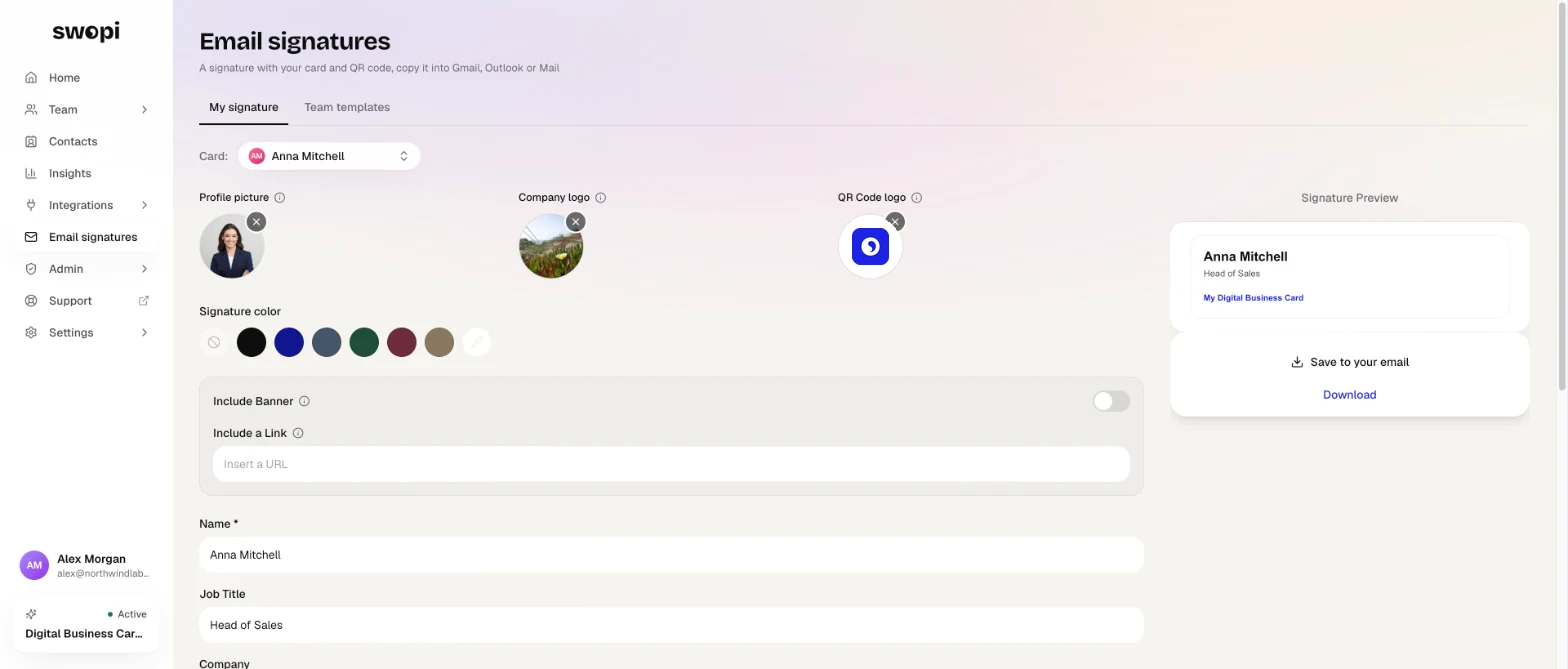
- At dash.swopi.co, open Email signatures in the left menu.
- If you have more than one card, pick the card the signature should use.
- Edit the images and details: profile picture, company logo, QR code logo, name, job title, company, phone number, location and disclaimer.
- If you want, turn on Include Banner, Include a Link or Include QR Code, and pick a Signature color.
- Check the result in the Signature Preview.
- Click Save to your email, pick your email provider and follow the steps.
With Download you can save the signature as a PNG image or copy its HTML. You find the same editor in the card editor, on the Email signature tab.
In the mobile app, go to Settings and tap Email Signature. The app emails you a link to the dashboard, where you create the signature.
#One signature for the whole team
An administrator also sees a Team templates tab on the Email signatures page.
- Click Create template and give it a name.
- Set the signature color, company, location, disclaimer, a banner with a link, and the QR code.
- Click Save.
- On the template, click Assign to members, pick the people and confirm with Assign.
The template settings are copied to the main card of each person you picked. Name, job title and phone stay their own. If you delete a template, signatures already assigned to members stay unchanged.
To set the look of the whole card, not just the signature, use card templates.