You can download your contacts as a CSV file for Excel or Outlook, or send them straight to your CRM.
#Download a CSV file
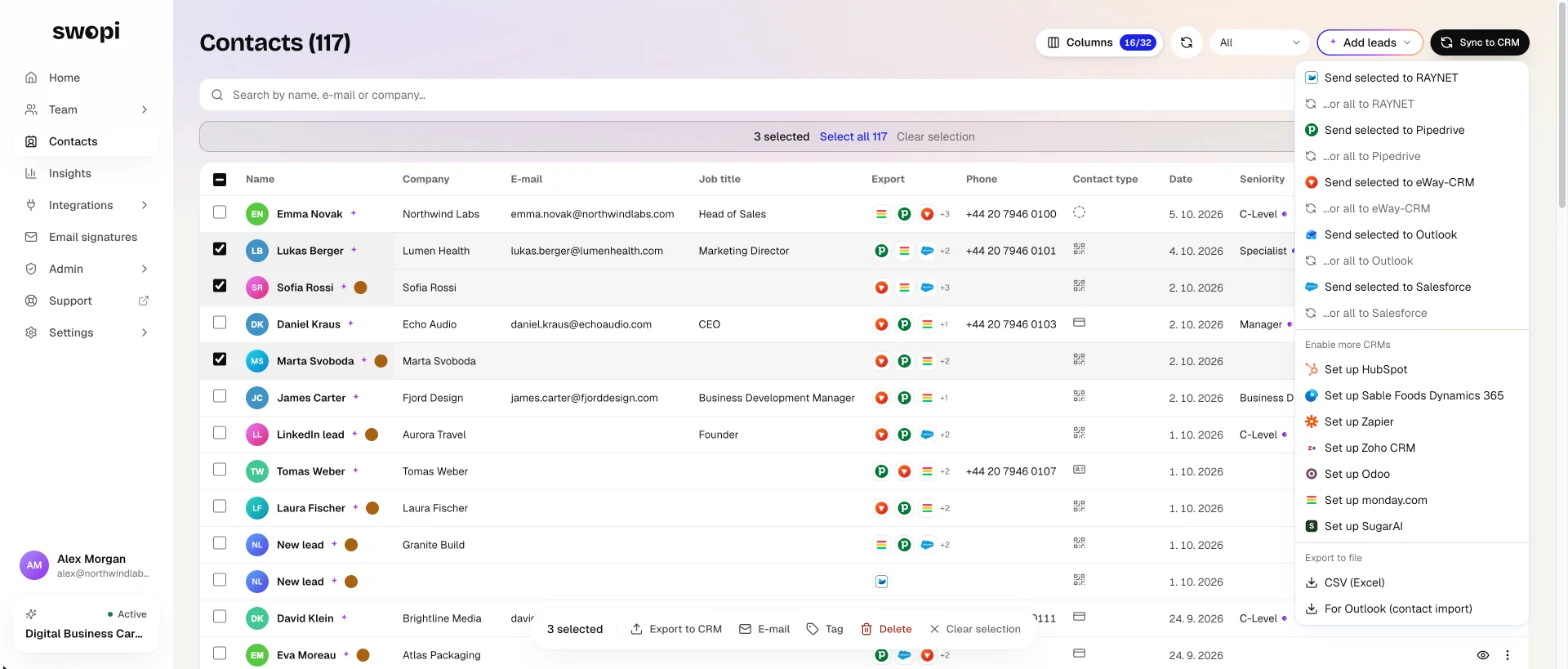
- On the Contacts page, tick the leads you want to export. To pick all of them, use Select all.
- Click Sync to CRM at the top right.
- Under Export to file, choose CSV (Excel) or For Outlook (contact import).
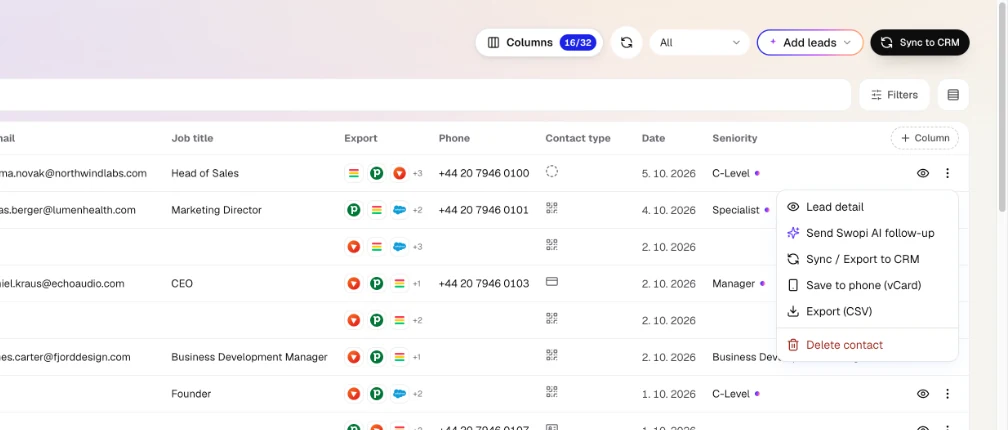
You find the same choices in the bar at the bottom when leads are selected: Export to CRM, then Download CSV (Excel) or CSV for Outlook. To download one lead, open the ⋮ menu on its row and click Export (CSV).
#What the file contains
- CSV (Excel): name, email, phone, company, job title, tags, note, date created, where you met, location, industry with its NAICS code, and whether the company is B2B or B2C. Accented letters show correctly in Excel.
- For Outlook: first and last name, email, company, job title, phone and note, ready to import into Outlook contacts.
A team member exports their own leads. Admins and managers export the leads of the whole team.
#Send to your CRM
- Tick the leads and click Sync to CRM.
- Choose Send selected to and the name of your CRM. The …or all to option sends all contacts.
To send one lead, click the icon in the Export column. The Send to CRM menu opens, and every CRM that already has the lead shows Sent. In the lead detail, just click Sync.
You connect a CRM in Integrations. Read more in Connecting a CRM and Sync status.
#Save to your phone
You can save a contact to your phone as a vCard: open the ⋮ menu on the row and choose Save to phone (vCard), or click Save as vCard in the Send to CRM menu.