For each lead, you can see which CRMs it was sent to. You do not need to check in the CRM itself.
#In the contacts list
- Sign in at dash.swopi.co.
- Open Contacts.
- The Export column shows the icons of the CRMs the lead was sent to. Move your mouse over an icon to see the date it was sent.
Use the Export filter to show only Exported leads or only Not exported leads.
#In the lead details
Click a lead. The Exported to CRM section shows the CRM icons. If the lead was not sent anywhere yet, you see Not exported to a CRM yet.
Click Sync in the lead details to send the lead to all CRMs you turned on.
#Send many leads at once
- In Contacts, select the leads you want to send.
- Click Sync / Export to CRM.
- Choose Send selected to and your CRM. Or choose …or all to to send the whole list.
#Sync history
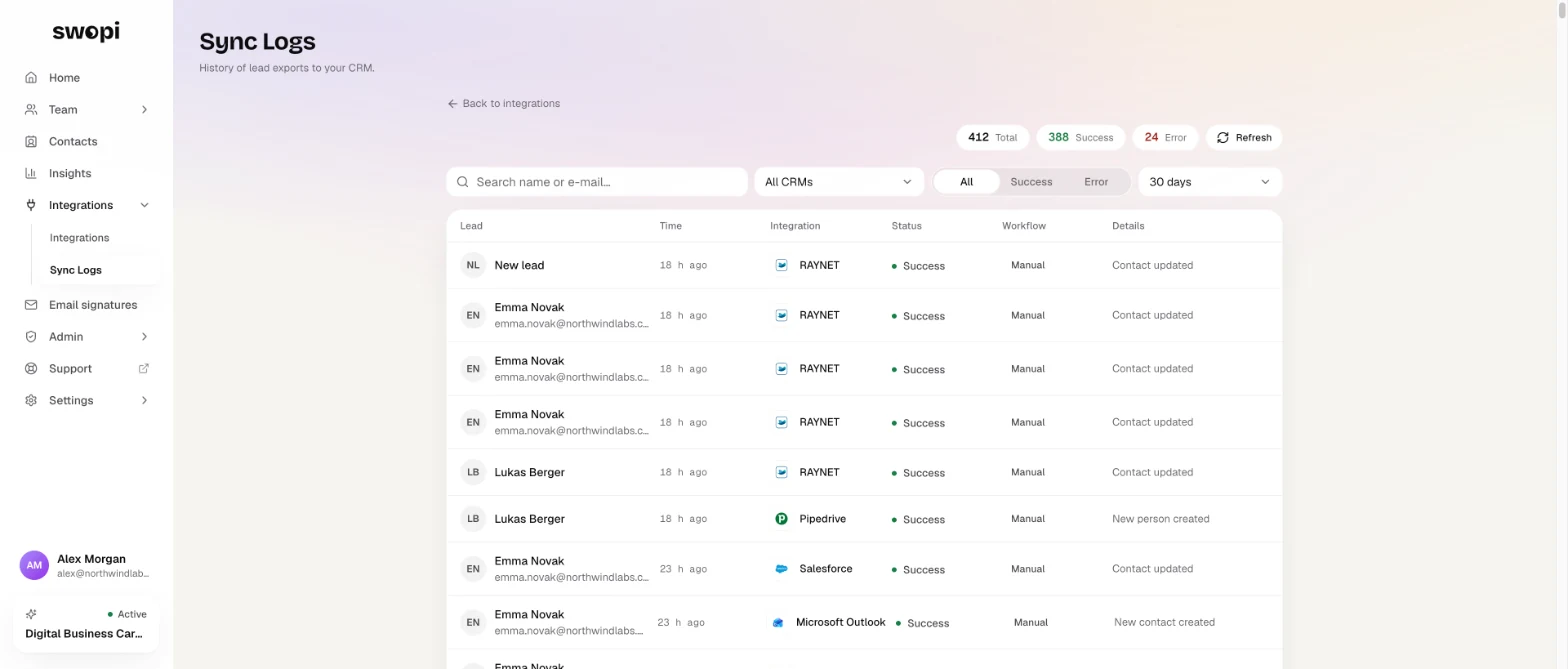
In the menu, open Integrations and then Sync Logs. Here you see each send with the time, the CRM and the result, Success or Error. The Workflow column shows if it was an automatic, manual or test send.
#If a lead was not sent
- In Integrations, check that your CRM is still connected.
- Look in Sync Logs for the error details.
- Send the lead again with Sync.
If the error does not go away, write to support@swopi.co. To connect a CRM, see How to connect your CRM.