Connect Swopi to your CRM and new leads are sent there on their own. You do not need to retype or export anything by hand.
#Who sets up the CRM
You connect a CRM in the dashboard on a computer. On the Pro plan, you set it up yourself. In a team, the team admin manages the company CRM, and each member can also connect their own next to it.
#Steps
- Sign in at dash.swopi.co.
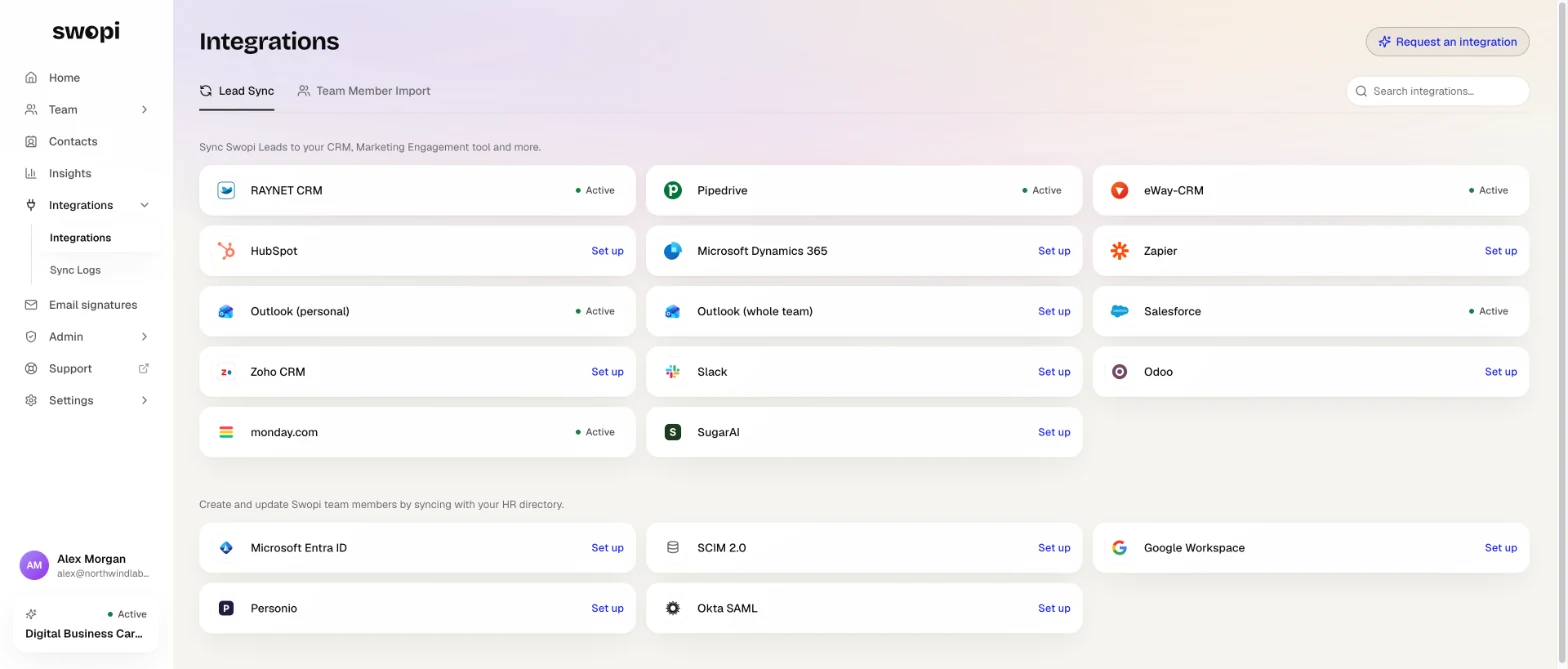
- In the menu, open Integrations.
- Under Lead Sync, find your CRM and click Set up.
- Connect your account. For some CRMs, one sign in is enough. For others, you enter access details from your CRM.
- Choose what Swopi should create in your CRM, for example a contact or a lead.
- Turn on Automatic synchronization. Each new contact is then sent to your CRM right away.
- Save the settings.
#Check that it works
Click Send test lead and look in your CRM to see if it arrived. If it did not, try Test connection and check your access details.
#Send leads by hand
If you turn automatic synchronization off, you send leads by hand from Contacts with the Sync / Export to CRM button. Read more in Sync status.
#Field mapping
Some CRMs have a Field mapping tab. There you choose which CRM field gets the name, company, job title and other details.
#Detailed guides
You find step by step guides for each CRM in our technical docs, for example for HubSpot, Pipedrive or RAYNET. The full list is in Supported CRMs.
Need help? Write to support@swopi.co.