Swopi shows you leads that appear twice on your Contacts page. You can also select many leads and run one action on all of them, instead of clicking each one.
#Find and delete duplicates
Swopi treats leads as possible duplicates when they share an email, or the same name and company.
- When Swopi finds some, a Duplicates button with the number of groups shows up next to Filters.
- Click it. The Possible duplicates window opens, with the leads shown in groups.
- Click a name to open the lead and check it.
- Delete duplicates deletes every lead in the group except the first one. To delete a single lead, click Delete next to it.
Deleting cannot be undone.
#Select leads
- Tick leads in the first column of the table. The box in the header selects the whole page.
- Above the table you see how many leads are selected. The Select all link selects all contacts, also the ones on other pages. While you search or use a date range, it selects only the matching ones.
- Clear selection removes the selection.
#Bulk actions
Once you select leads, a bar with actions shows up at the bottom:
- E-mail: opens your email app with the selected addresses in BCC.
- Tag: Add tag or Remove tag for all selected leads at once.
- Delete: deletes the selected leads from Swopi. Leads already in your CRM stay there. This cannot be undone.
In a team, admins and managers can change tags and delete contacts.
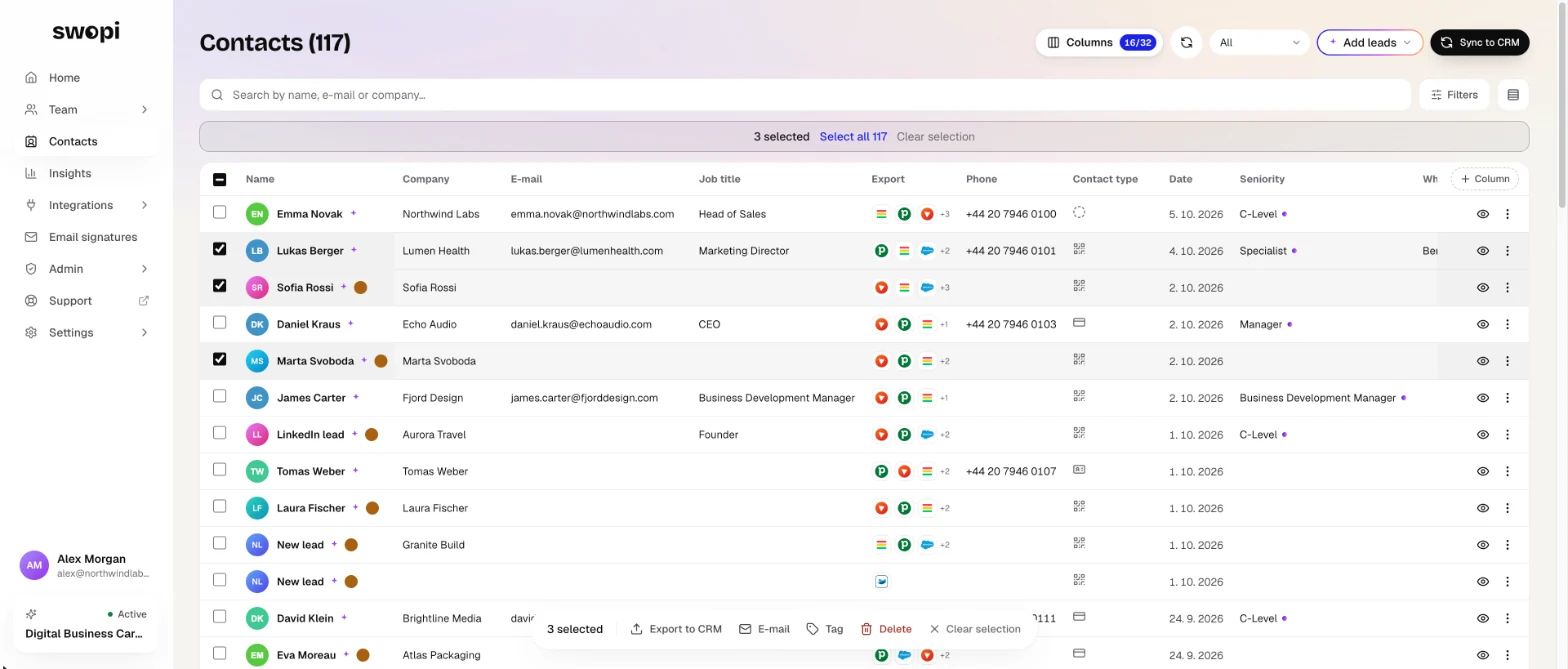
#Export and CRM for selected leads From Pro
In the bar, click Export to CRM. Here you can send the selected leads to a connected CRM, or download them with Download CSV (Excel) or CSV for Outlook. Read more in Exporting contacts.