You can give your QR code your company color and put your own logo in the middle. The code works the same way, it just looks like part of your brand.
#In the app
- On the Cards tab, tap More ways to share.
- At the bottom, tap Customize QR Code.
- Tap Upload logo and pick an image.
- Under QR color, pick a color, or tap Custom Color.
- Tap Save changes.
To go back to the default look, tap Reset QR code.
#In the dashboard
- Sign in at dash.swopi.co.
- Open My cards and pick a card.
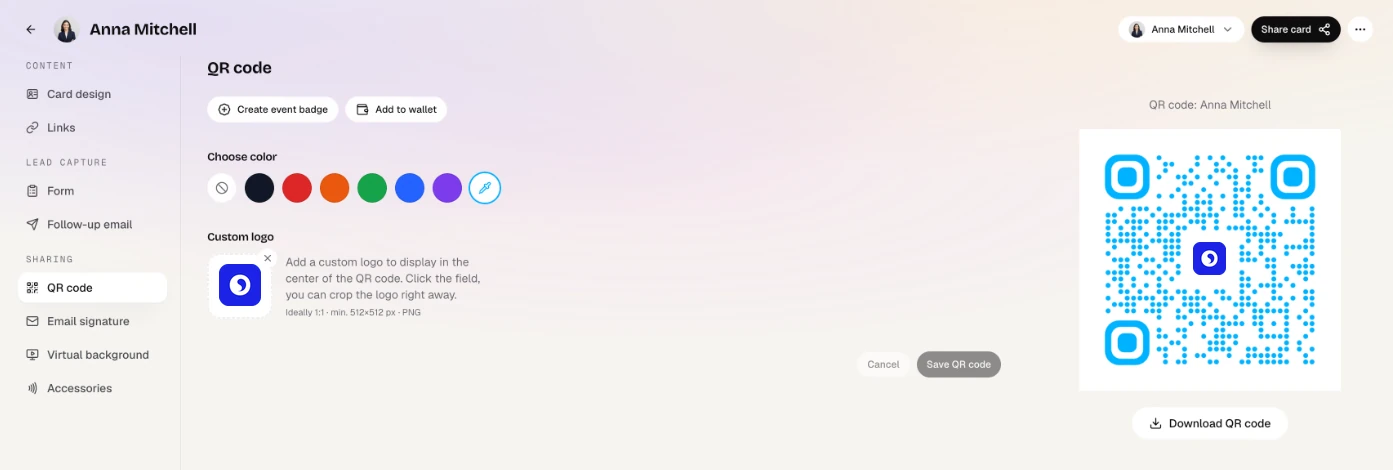
- Go to the QR code tab.
- Under Choose color, pick a color from the list or your own color.
- Under Custom logo, upload your logo. You can crop it to a square right away. A PNG of 512 × 512 px works best.
- Click Save QR code.
#Download for print
Under the preview on the right, click Download QR code and pick PNG, SVG or PDF. You can then put the code on a flyer, a poster or your booth at a trade fair.
#Tip
Pick a color that is easy to see on a white background. The higher the contrast, the faster a phone reads the code.
For more ways to send your card, see Sharing.