Links are the main content of your card. Add your phone, email, social media, website, meeting booking or a file to download.
#Basic links
On every plan you can add, for example, phone, email, WhatsApp, LinkedIn, Instagram, a contact card, text or video. There are more than a hundred link types, sorted into categories.
#Add a link in the app
- On the Cards tab, tap Edit.
- Tap Add content.
- Pick a link type, fill in the details and save.
#Add a link in the dashboard
- Sign in at dash.swopi.co.
- Open My cards and pick a card.
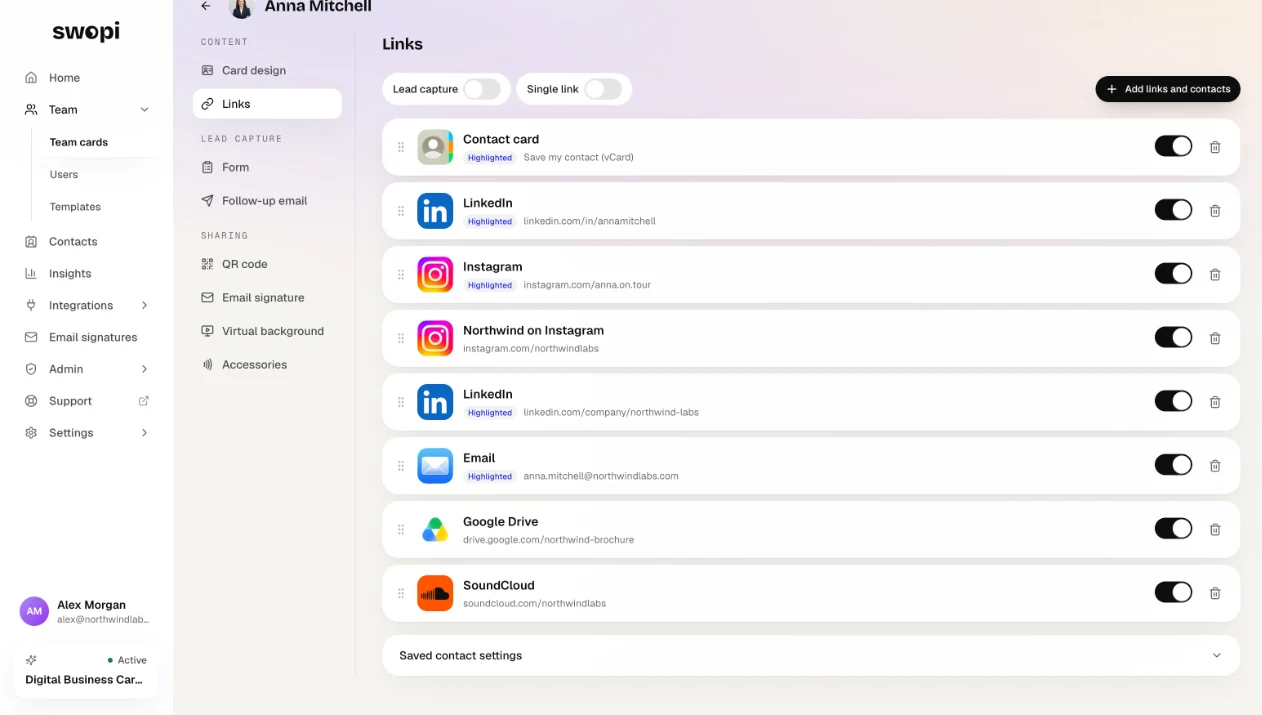
- Go to the Links tab and click Add links and contacts.
- Pick a link type, fill in the details and click Add.
Drag links to change their order. You can Highlight your most important link, so it is bigger and easier to see on your card.
#Pro link types From Pro
Some link types need the Pro plan. These include, for example, Custom link, Calendly, Cal.com, Google Calendar, HubSpot Meetings, Zoom, Google Meet, Google Maps, Google Review, Trustpilot, PayPal, Stripe and App Store. In the list, they have a lock or a label.
#Custom link icon From Pro
In the dashboard, you can click Upload custom icon on a link and use your own image instead of the Swopi icon.
#Files From Pro
You find the File link type in the Content category. Upload, for example, a catalog or a presentation, and visitors can download it right from your card.
#When your subscription ends
Your links stay on your card. Custom icons are replaced with Swopi icons and come back when you renew.
For all the ways to edit your card, see Edit your card.