The form lets visitors of your card send you their contact. Each filled form is saved as a new lead for you.
#When the form shows
- Switch off: the form shows after the visitor taps Save Contact and saves your contact.
- Switch on: the form pops up as soon as your card opens. The visitor fills in their details first and then sees your card.
#Turn it on in the app
- Open the Settings tab.
- Under Sharing & lead capture, turn on Collect Their Info First.
#Change the form in the dashboard
- Sign in at dash.swopi.co.
- Open My cards and pick a card.
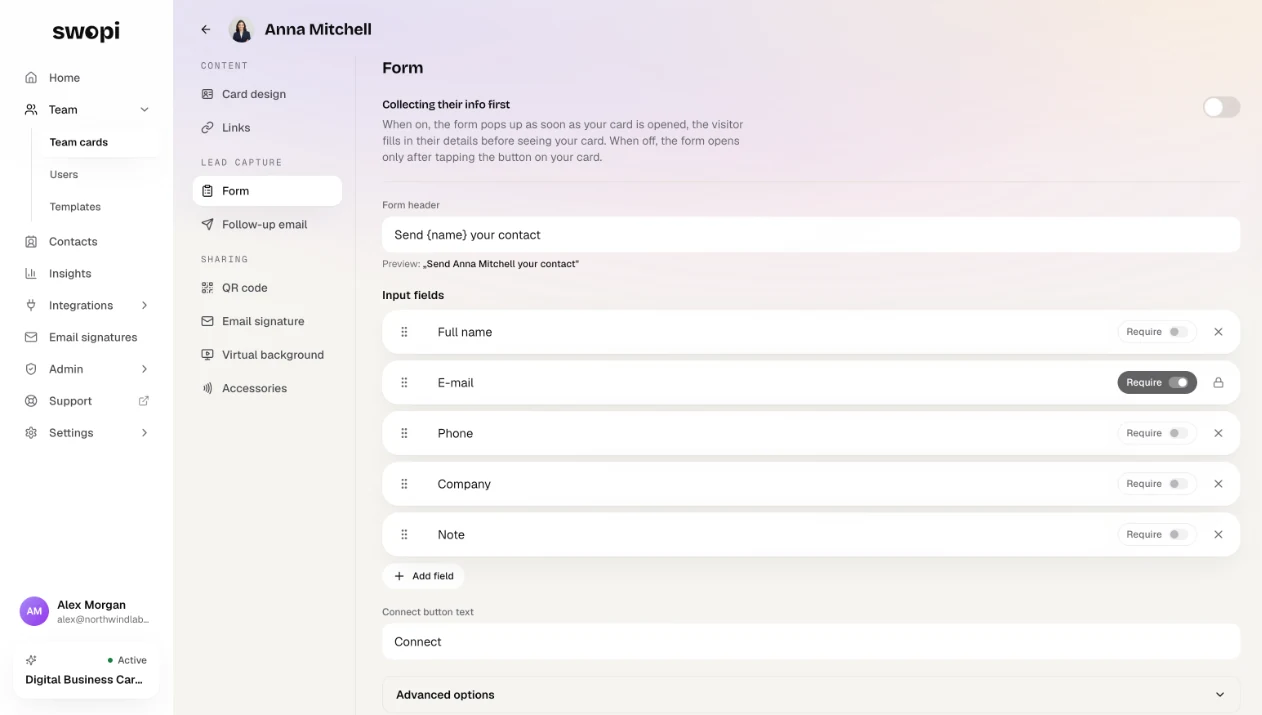
- Go to the Form tab.
- Use the Collecting their info first switch to choose when the form shows.
- Change the form header, the input fields, the button text and the small print under the button.
- Click Save changes.
You can add fields, remove them and mark them as Require. Email is always required, because without it we cannot create the contact. If you type {name} in the header, it is replaced with your name.
Default form texts show in the visitor's language. Text you change yourself stays as you wrote it.
#Hidden fields
Under Advanced options you find Hidden fields. Visitors never see them, but their value is added to every lead. This is useful to mark an event, for example Event = Expo 2026.
#Where to find your leads
New leads show in the app on the Contacts tab and in the dashboard under Contacts. After sending the form, the visitor gets your card by email.
To learn what to do with your leads next, see Managing contacts.