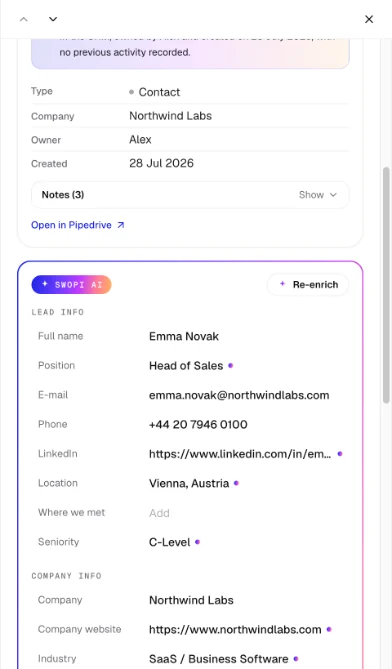
Swopi AI adds what it finds about a lead and their company in public sources. You no longer have to look it up yourself.
In a team, enrichment is available to members with an Event Lead Capture licence, see Event Lead Capture licence.
#What AI fills in
- Lead info: job title, seniority, LinkedIn and location.
- Company info: website, industry, size, revenue, year founded, company type, funding, registration and VAT numbers, address, company email and phone, company LinkedIn, technologies and a short company description.
- Lead score, see Intent scoring.
AI never overwrites fields that are already filled in. A small colored dot marks a value from AI.
#When enrichment runs
- A lead you scan in the mobile app is enriched right after the scan.
- When you add a lead in the dashboard with Add leads, Create manually or Create from LinkedIn.
- When you import a CSV file with Import & Enrich turned on, see Bulk enrichment.
- Any time by hand, from the lead detail.
#Enrich from the lead detail
- On the Contacts page, open the lead.
- In the Swopi AI box, click Enrich with Swopi AI. If the lead is already enriched, you see Re-enrich instead.
- After you click Re-enrich, check the Name and Company and click Enrich lead.
Re-enrichment does not overwrite anything you added or edited by hand. If AI finds nothing, add a company or LinkedIn and try again. You also find Re-enrich in the lead detail in the mobile app.
#Suggestions from AI
If AI finds a different job title or company name than the one on the card, it shows it as a suggestion, for example Swopi AI found a different job title. The field keeps the original value until you click the suggestion.
For an email, you see whether it is verified or predicted. A predicted email is based on the company email format, so check it with the lead.